API Access & Keys
Find, copy, and protect your Gamma Earth API key, and learn what happens to it and your credits when it expires.
Your API key identifies your account when you use Gamma Earth outside the portal, through the API or the Python SDK. You manage it on the API Access & Keys page, in the left panel of the Gamma Earth portal.
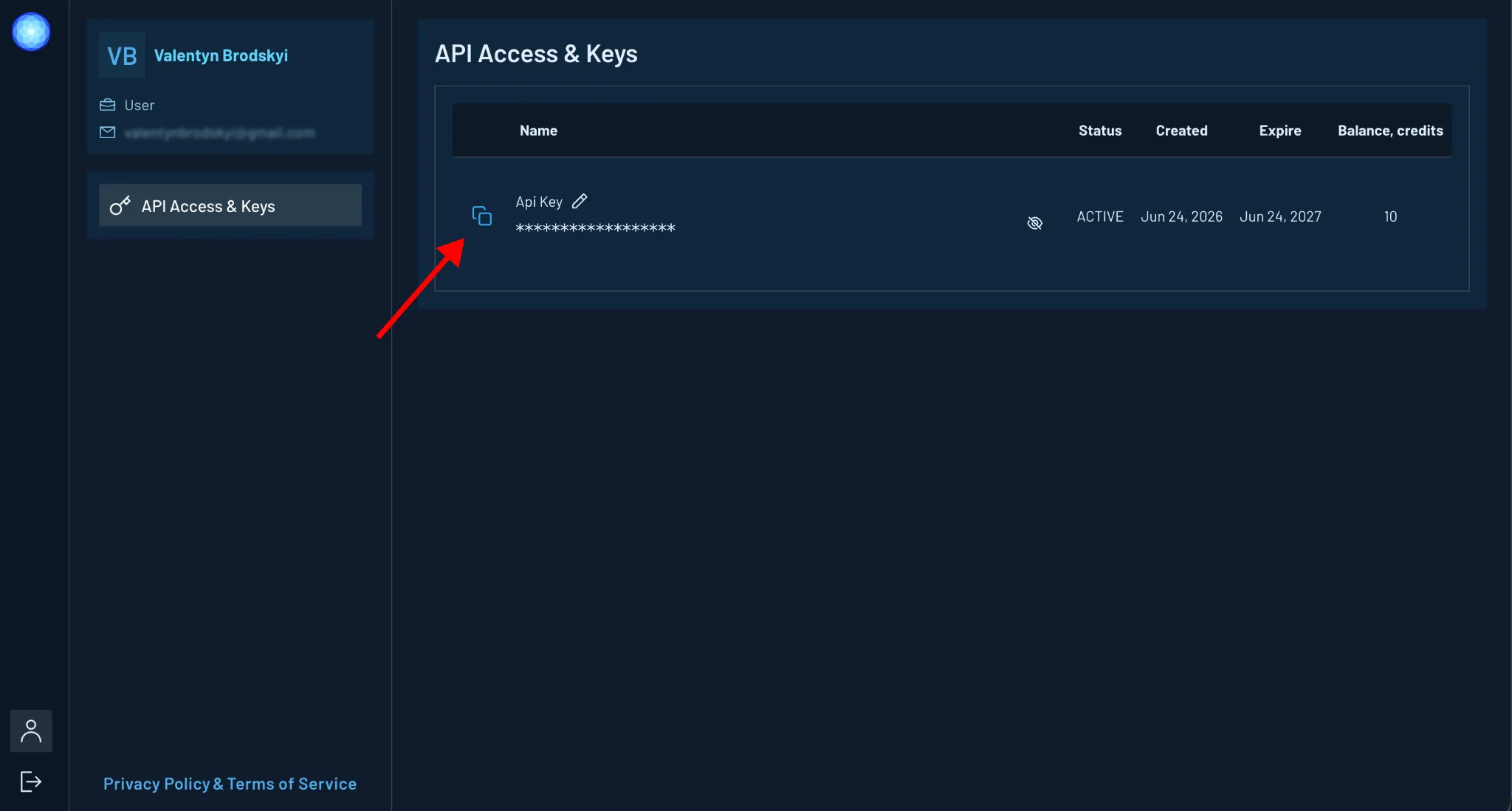
Your API Key
- Your key is created automatically when you create your Gamma Earth account. There is no separate step to generate it. If you do not have an account yet, register at app.gamma.earth/register; see Register and Log In.
- Each account has one active API key at a time.
- Your key is valid for one year from the date it was created. See "When Your Key Expires" below.
- Your credits are tied to your key, so the key's balance is your account balance.
Copy Your Key
Click the copy icon at the start of the key row. The full key is copied to your clipboard, even while it is hidden on screen.
If the table shows more than one key, copy the one with the status ACTIVE.
Where You Use Your Key
API
Your key is part of the request URL. Replace {API_KEY} with your key:
https://api.gamma.earth/jobs/{API_KEY}
See API Latest Release Version 1.0.
Python SDK
Set your key in the GE_API_KEY environment variable, for example:
os.environ['GE_API_KEY'] = <YOUR-API-KEY>
See Python SDK Latest Release s2dr3-20260907.
Keep Your Key Private
Keep your API key private. Do not share it with anyone. Your credits are tied to your key, so anyone who has your key can use your credits.
Because the key is part of the API request URL, treat any URL, log line, notebook output, or screenshot that contains it as a secret. Hide the key before you share your screen or take a screenshot of the API Access & Keys page.
If your key has been exposed, contact support@gamma.earth to have it reissued. Then replace the old key in your API requests and SDK setup.
What the Page Shows
| Column | What it means |
|---|---|
| Name | The name of your key. New keys are called "Api Key". You can rename it. |
| Status | ACTIVE: the key is valid and within its validity period. EXPIRED: the date in the Expire column has passed, and the key has been replaced by a new ACTIVE key. |
| Created | The date the key was created. |
| Expire | The date the key stops being valid. |
| Balance, credits | The credits available on your account: the credits you bought plus your monthly bonus credits. |
Show or Hide Your Key
Your key is hidden by default. Click the eye icon in the key row to show it, and click it again to hide it. The key is hidden again when you reload the page.
Rename Your Key
- Click the pencil icon next to the key name.
- Enter a new name. The name cannot be empty.
- Click Save, or press Enter.
To close the dialog without saving, click Cancel or press Escape.
Renaming a key changes only its label. The key itself stays the same, so your existing scripts and integrations keep working.
When Your Key Expires
- The Expire column shows the date your key stops being valid, one year after it was created.
- When your key expires, its status changes to
EXPIRED, and a new key appears in the table with the statusACTIVE. Your credit balance moves to the new key. - The API and the SDK work only with your current key. Copy the new
ACTIVEkey and replace the old key everywhere you use it: in your API request URLs and in theGE_API_KEYvalue for the Python SDK. - If you join the Academic Program and your key would expire before your Academic plan ends, the key's expiry date is moved to your plan's end date.
Limitations
- You cannot create an additional key or delete a key.
- You cannot generate a new key yourself in the portal. To have your key reissued before it expires, for example because it has been exposed, contact support@gamma.earth.