Google Colab Public Demo
Run the S2DR3 and S2DR4 notebooks in Google Colab with your Gamma Earth API key. Changelog, the Colab secret, what each notebook does and what it costs.
Run S2DR3 and S2DR4 on real Sentinel-2 scenes in Google Colab. The notebooks run in your browser, so there is nothing to install. The Base Plan includes 75 free credits every month; see pricing.
Changelog
14 October 2026
- S2DR3 notebook: it installs the wheel
s2dr3-20261012.1. Gamma Earth now chooses the image (the clearest one in the 90 days before your date), the credits are reserved when the run starts and returned if it fails, and a refused run stops with a short message instead of a status code. - S2DR4 notebook: it installs the wheel
s2dr4-20261014.1. It now needs your API key and uses credits, at the same price as S2DR3 and from the same balance. It prints the credits reserved and the dates of the images it used, stops with a clear message when there are not enough usable images, and has a new preview page. - Both notebooks: the registration link at the top points to app.gamma.earth/register.
Before You Start
You need:
- A Google account, to use Google Colab.
- A Gamma Earth account and its API key. To create the account see Register and Log In; to find and copy your key see API Access & Keys.
Keep your API key private. Do not share it with anyone.
Add Your API Key as a Colab Secret
Do this once. Both notebooks use the same secret.
-
Open one of the notebooks: S2DR3 notebook or S2DR4 notebook.
-
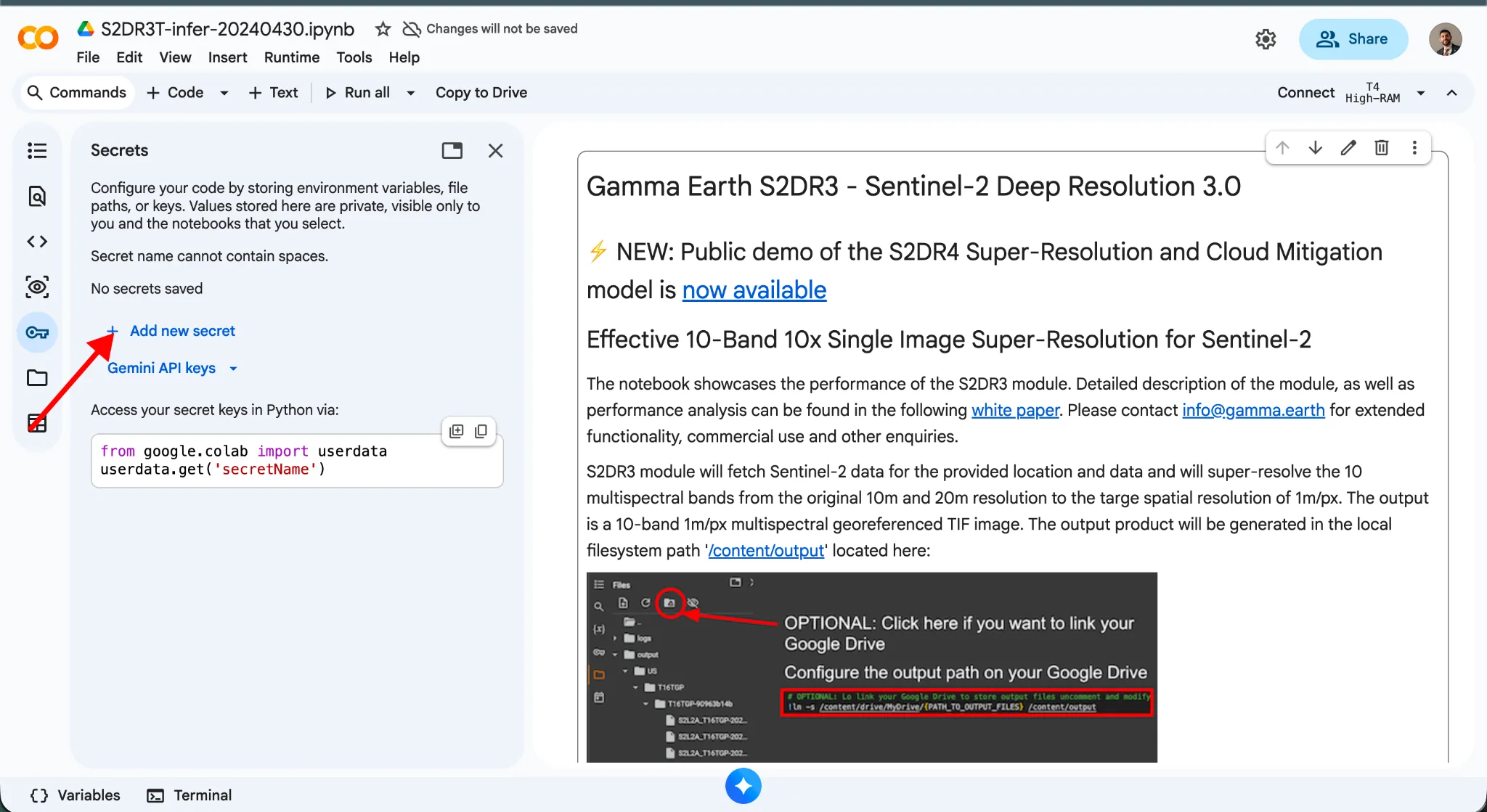
Click the key icon in the left sidebar to open the Secrets panel.
-
Click Add new secret.
-
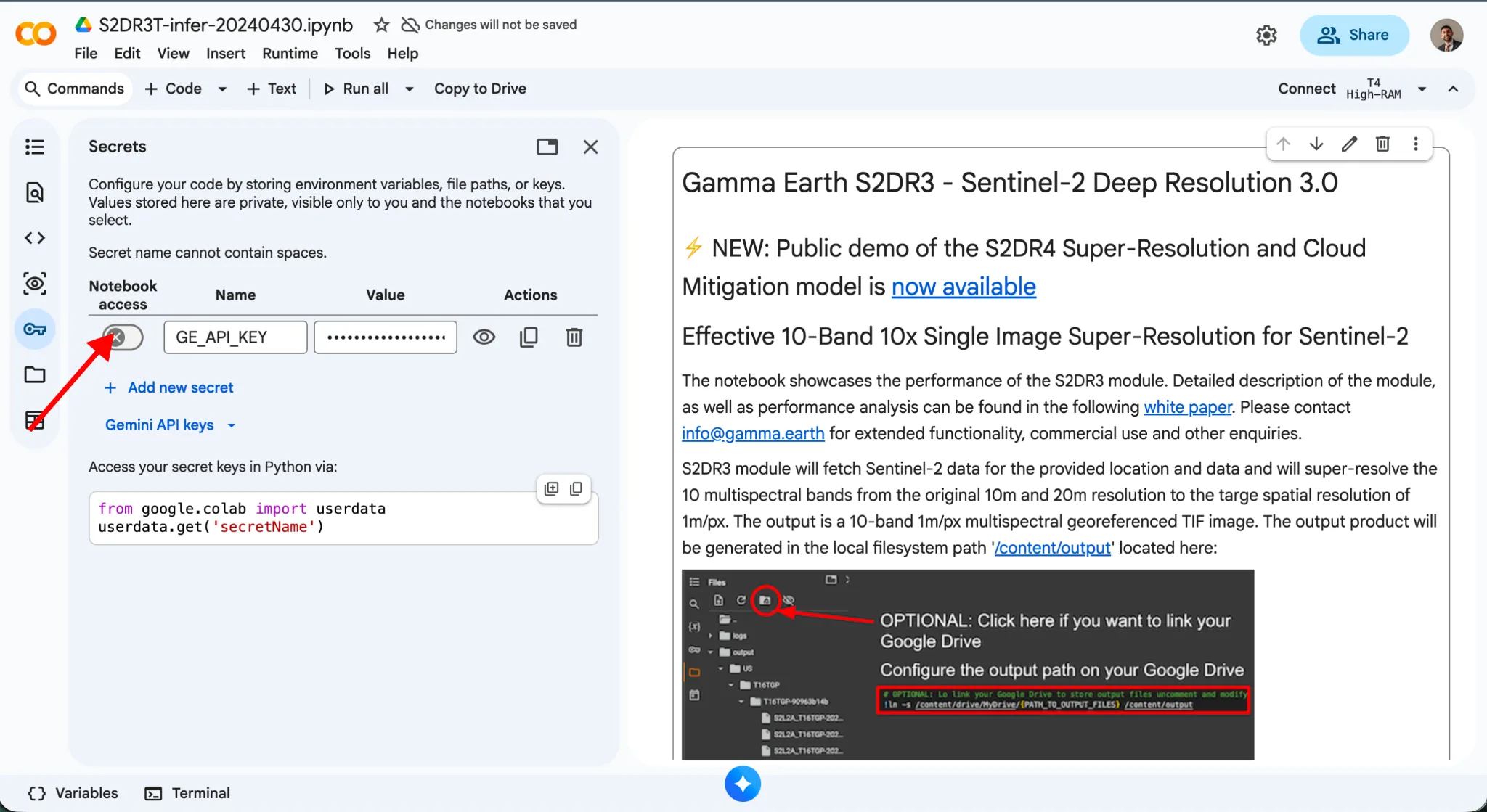
In the Name field, enter:
GE_API_KEYEnter the name exactly as shown. Secret names cannot contain spaces.
- Paste your API key into the Value field.
- Switch on the Notebook access toggle for the
GE_API_KEYsecret.
Run S2DR3
- Open the S2DR3 notebook.
- Select a T4 GPU runtime: Runtime > Change runtime type.
- Run the installation cell, then, in the last code cell, set
lonlat(the longitude and latitude of the centre; the notebook processes a 4 x 4 km area around it) anddate. - Run the cell. The notebook looks back 90 days from your date and uses the
clearest image. It prints the credits it reserved and returns the 1 m
super-resolved image, saved in
/content/output, with a link to preview it.
Run S2DR4
S2DR4 also removes the clouds: it combines several recent Sentinel-2 images of your area.
- Open the S2DR4 notebook.
- Select a T4 GPU runtime, as above. The secret is the same: you do not need to add anything if you already did.
- Run the installation cell, then set
lonlatanddatein the last code cell and run it. - The notebook prints the credits reserved and
Images used:with the dates of the images it combined. The output is a 1 m super-resolved image, saved in/content/output, with a link to preview it. If fewer than 5 usable images are found, the run stops with a message and the credits are returned.
For what S2DR4 does, how it chooses the images and what its messages mean, see Python SDK.
Credits
Both notebooks use credits at the same price, from the same balance. The run prints the credits it reserved. Running the same area for the same date again with the same key is free, for each notebook separately. See How Credits Work and Credit Balance and History.
Good to Know
- The Google Colab notebooks are intended for testing and evaluation, and their functionality is limited.
- For more than the free credits, higher throughput, or automated workflows, see pricing or use the API and Python SDK with the same API key.
- If your API key expires, a new key replaces it. Copy the new
ACTIVEkey and update the value of yourGE_API_KEYsecret in Colab. See API Access & Keys.